A Whirlwind Tour
This section is a quick introduction to SpecForge's main capabilities through a hands-on example. We'll explore how to write specifications in the Lilo language and analyze them using SpecForge's VSCode extension.
The Lilo Language: A Brief Introduction
Lilo is an expression-based temporal specification language designed for hybrid systems. Here are the key concepts:
Primitive Types: Bool, Int, Float, and String
Operators: Standard arithmetic (+, -, *, /), comparisons (==, <, >, etc.), and logical operators (&&, ||, =>)
Temporal Operators: Lilo's distinguishing feature is its rich set of temporal logic operators:
always φ:φis true at all future timeseventually φ:φis true at some future timepast φ:φwas true at some past timehistorically φ:φwas true at all past times
These operators can be qualified with time intervals, e.g., eventually[0, 10] φ means φ becomes true within 10 time units. More operators are available.
Systems: Lilo specifications are organized into systems that group together:
signals: Time-varying input values (e.g.,signal temperature: Float)params: Non-temporal parameters that are not time-varying (e.g.,param max_temp: Float)types: Custom types for structured datadefinitions: Reusable definitions and helper functionsspecifications: Requirements that should hold for the system
A system file begins with a system declaration like system temperature_control and contains all the declarations for that system.
For a comprehensive guide to the language, see the Lilo Language chapter.
Running Example
We'll use a temperature control system as our running example. This example project is available in the releases. The system monitors temperature and humidity sensors, with specifications ensuring values remain within safe ranges:
system temperature_sensor

// Temperature Monitoring specifications
// This spec defines safety requirements for a temperature sensor system

import util use { in_bounds }

signal temperature: Float
signal humidity: Float

param min_temperature: Float
param max_temperature: Float

#[disable(redundancy)]
spec temperature_in_bounds = in_bounds(temperature, min_temperature, max_temperature)

spec always_in_bounds = always temperature_in_bounds

// Humidity should be reasonable when temperature is in normal range
spec humidity_correlation = always (
  (temperature >= 15.0 && temperature <= 35.0) =>
  (humidity >= 20.0 && humidity <= 80.0)
)

// Emergency condition - temperature exceeds critical thresholds
spec emergency_condition = temperature < 5.0 || temperature > 45.0

// Recovery specification - after emergency, system should stabilize
spec recovery_spec = always (
  emergency_condition =>
  eventually[0, 10] (temperature >= 15.0 && temperature <= 35.0)
)
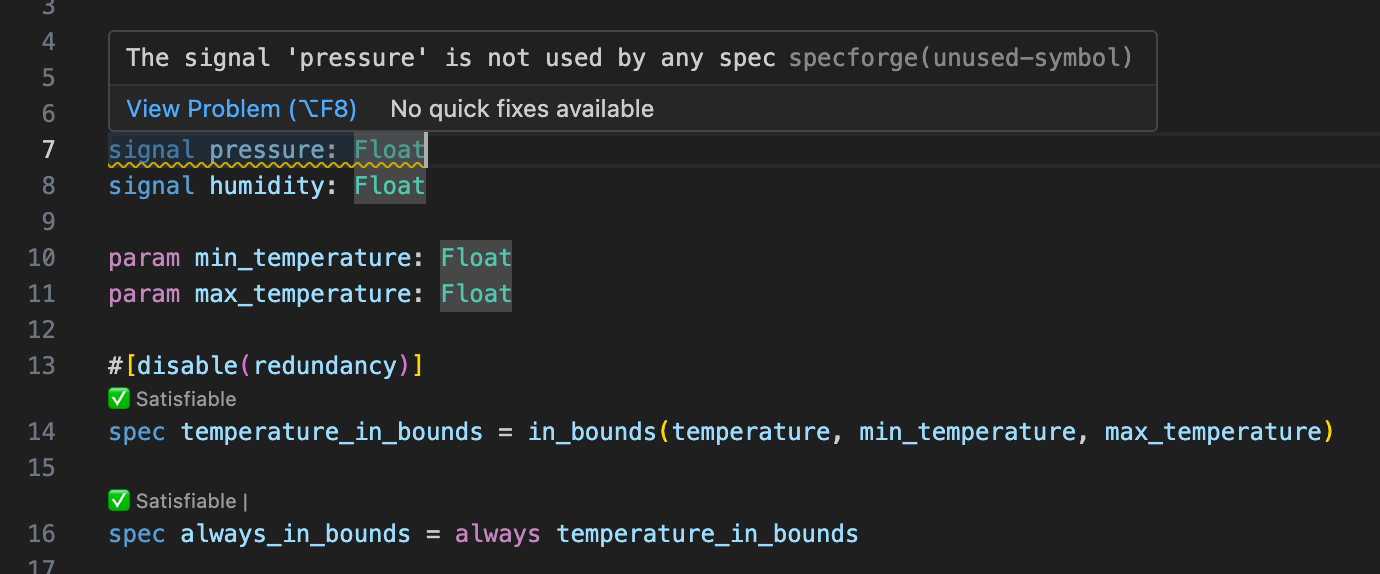
The VSCode extension provides support for writing Lilo code, syntax highlighting, type-checking, warnings, spec satisfiability, etc.:
Spec Analysis
Once you've written specifications for your system, the SpecForge VSCode extension provides various analysis capabilities:
- Monitor: Check whether recorded system behavior satisfies specifications
- Exemplify: Generate example traces that satisfy specifications
- Falsify: Search for counterexamples that violate specifications, relative to some model
- Export: Convert specifications to other formats (
.json,.lilo, etc.) - Animate: Visualize specification behavior over time
This can be done directly from within VSCode, or from within in a Jupyter notebook using the Python SDK. We will perform analyses directly in VSCode here. The VSCode guide details all features in greater depth.
Monitoring
Monitoring checks whether actual system behavior, recorded in a data file, satisfies your specifications. You provide recorded trace data, and SpecForge evaluates a specification against it.
Navigate to the spec selection screen, and click the Analyse button for the spec you want to monitor.
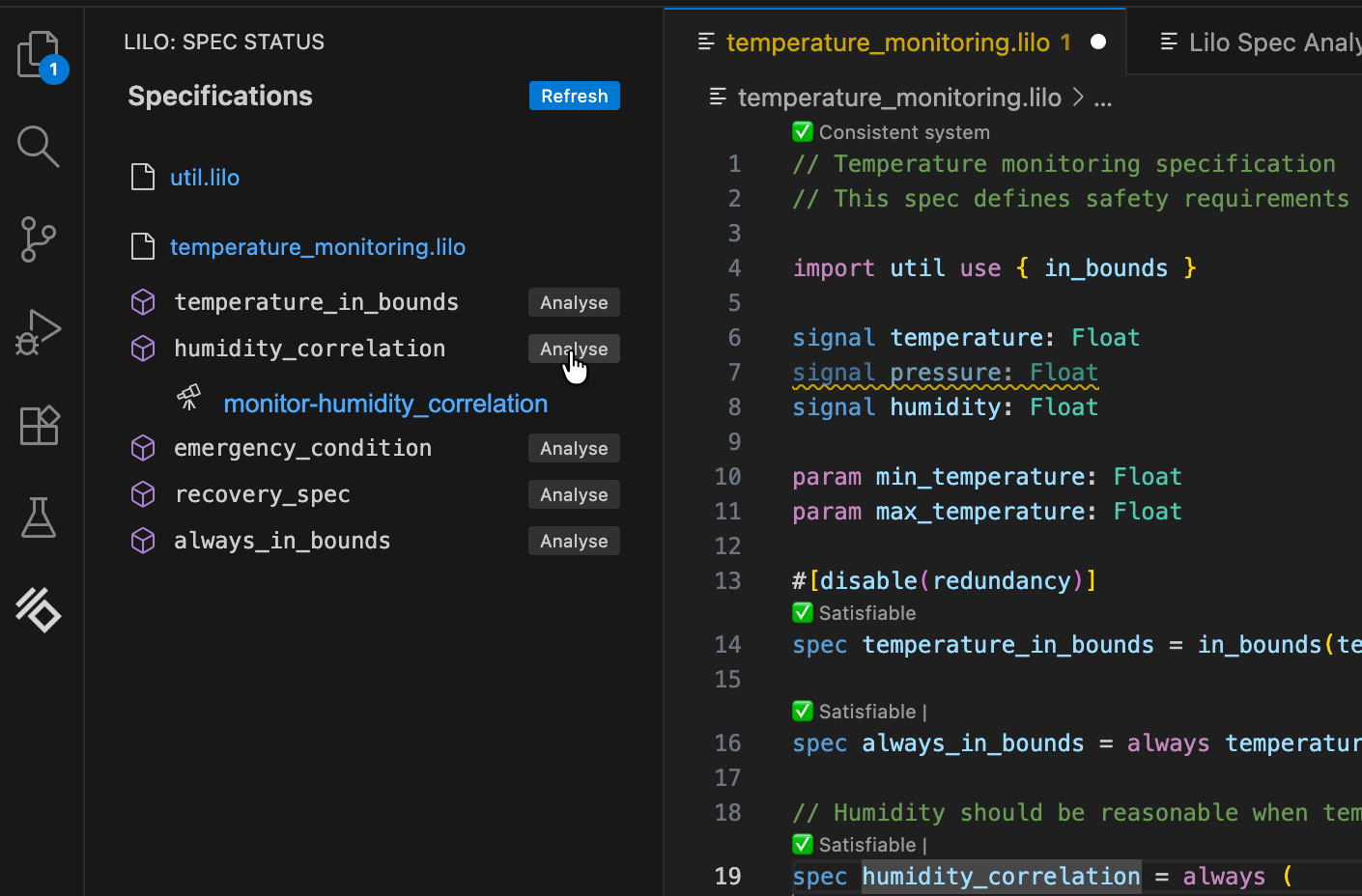
After selecting a data file from the dropdown menu, click Run Analysis. The result is an analysis monitoring tree for the specification:
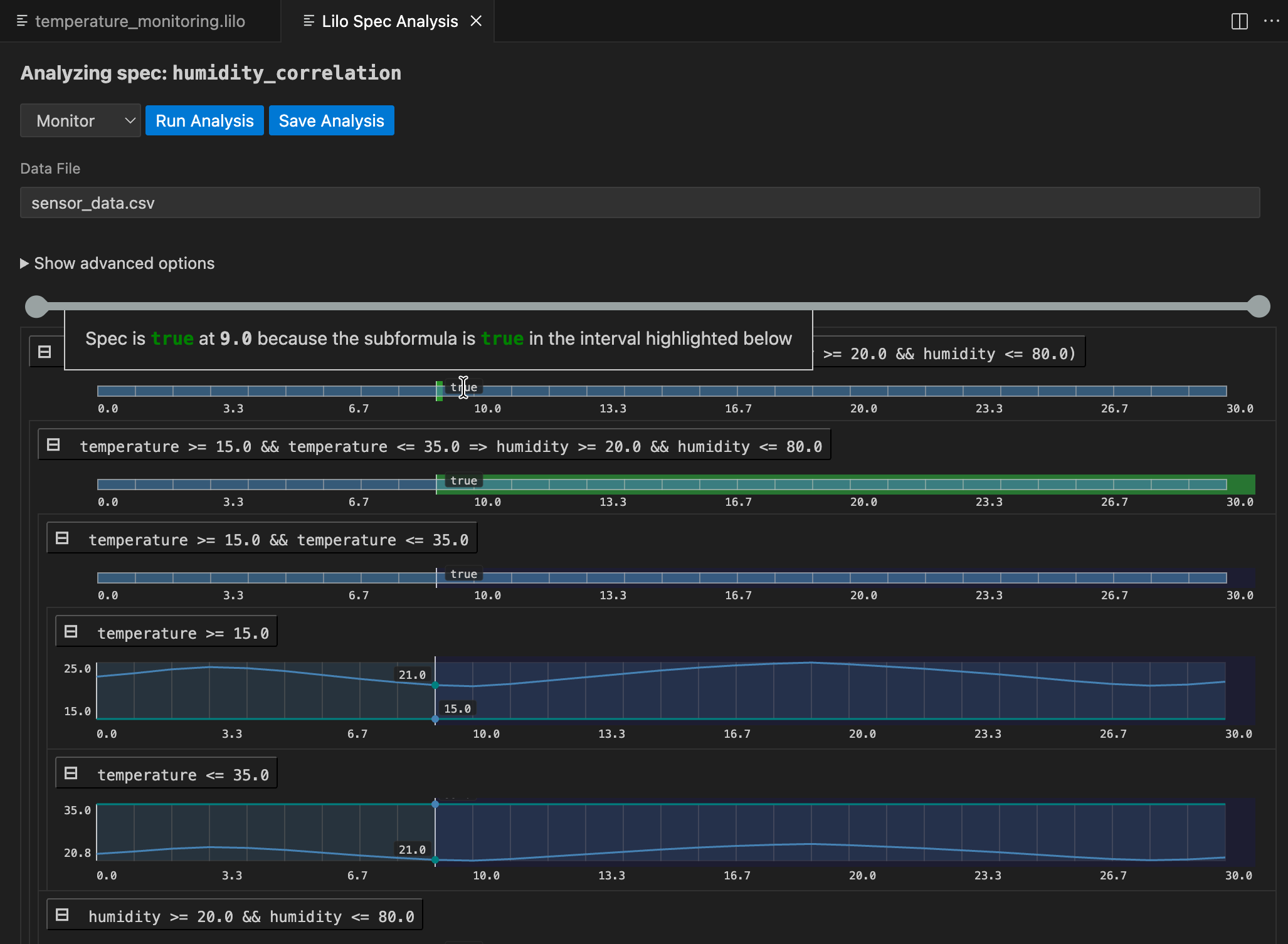
The result for the whole specification is shown at the top. Below this, you can drill down into sub-expressions of the specification, to understand what makes the spec true or false at any given time. Hovering over any of the signals will show a popup with an explanation of the result at that point in time, and will highlight relevant segments of sub-expression result signals.
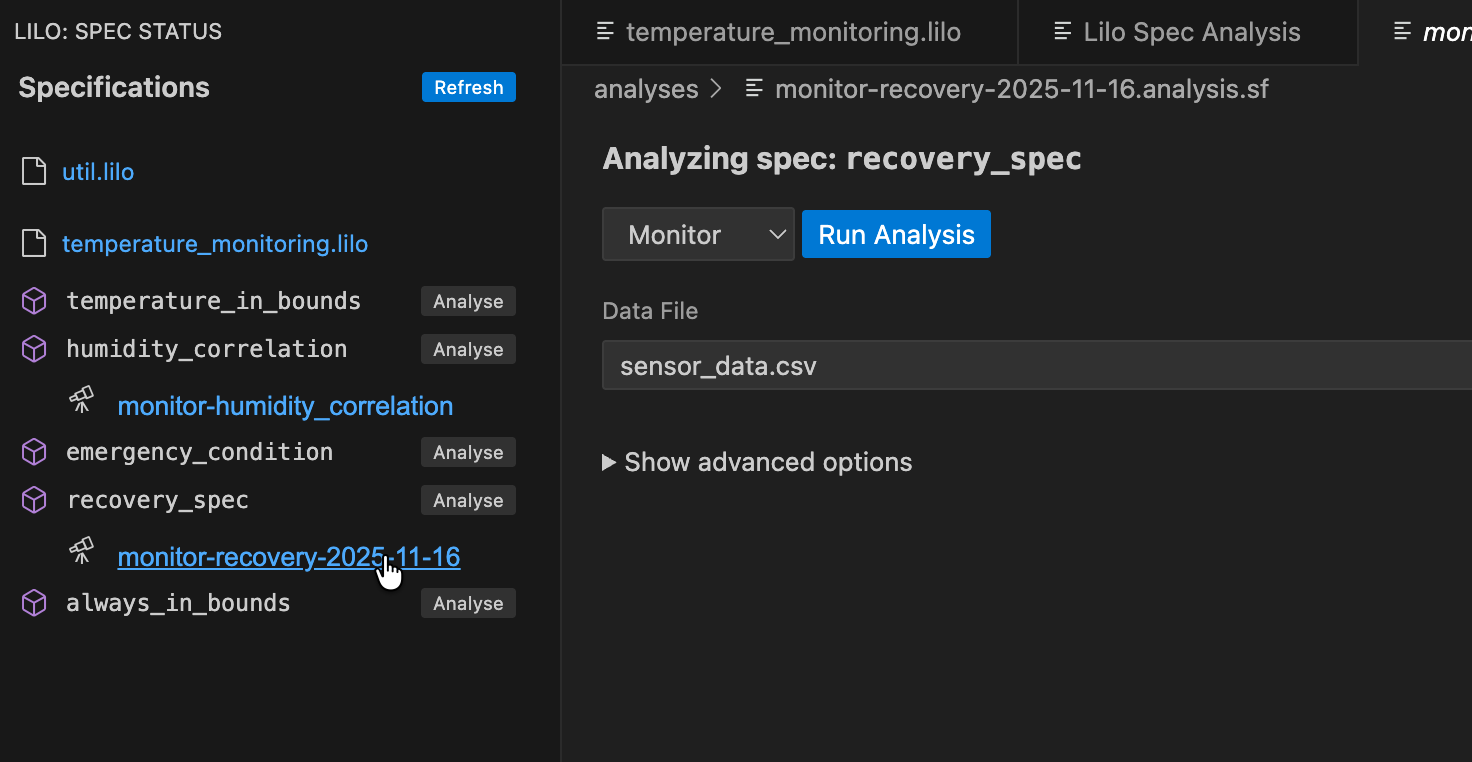
An analysis can be saved. To do so, click the Save Analysis button, and choose a location to save the analysis. You can then navigate to this analysis file and open it again in VSCode. The analysis will also show up in the specification status menu, under the relevant spec.
Exemplification
The Exemplify analysis generates example traces that demonstrate satisfying behavior. This is useful for:
- Understanding what valid system behavior looks like
- Testing other components with realistic data
- Creating animations
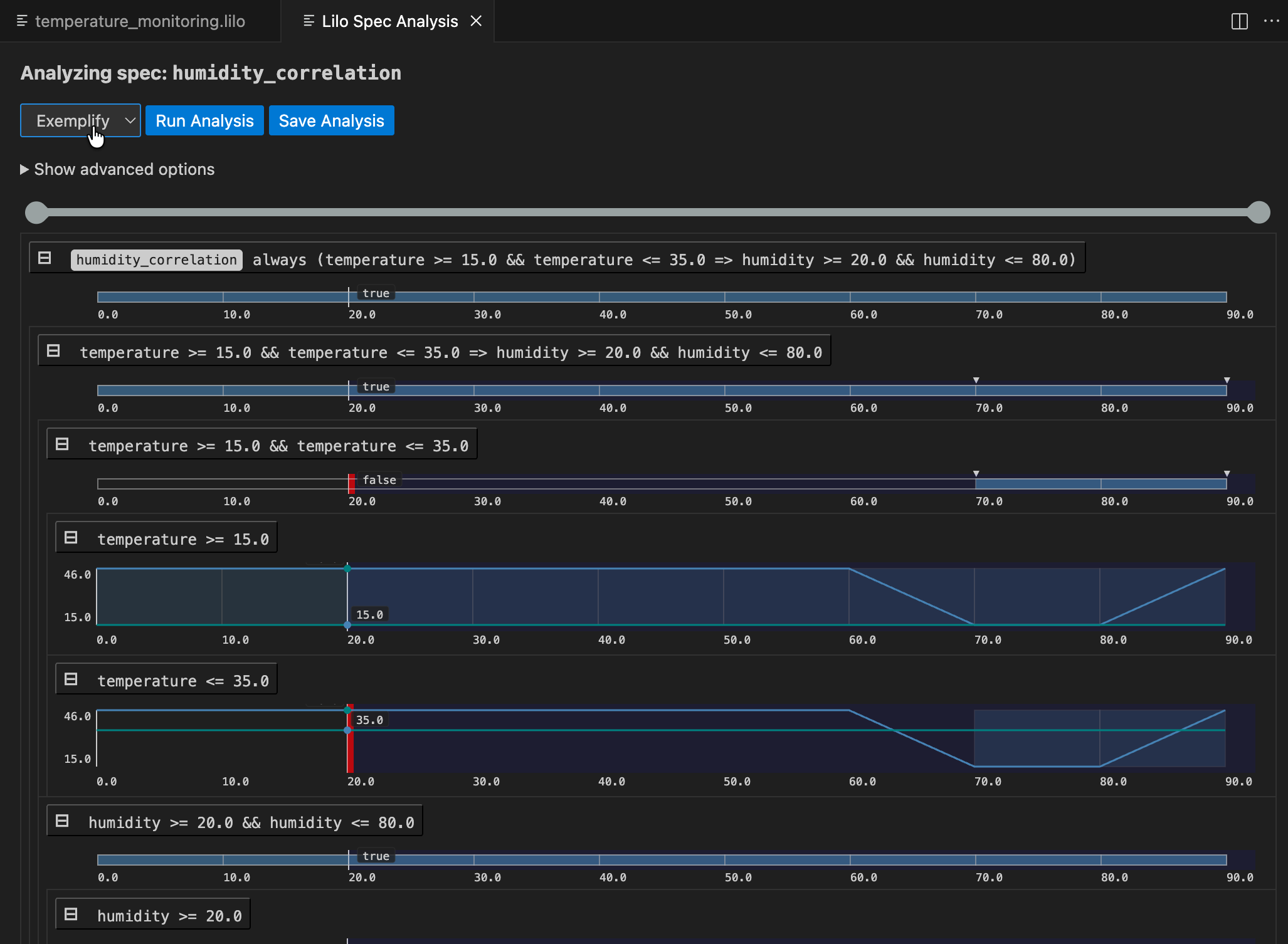
If the exemplified data does not behave as expected, the specification might be wrong and need to be corrected. Exemplification can thus be used as an aid when authoring specifications.
Falsification
If a model for the system is available, falsification can be used to see if the model behaves as expected, that is, according to specification.
First a falsifier must be registered in lilo.toml, e.g.
name = "automatic-transmission"
source = "spec"

[[system_falsifier]]
name = "AT Falsifier"
system = "transmission"
script = "transmission.py"
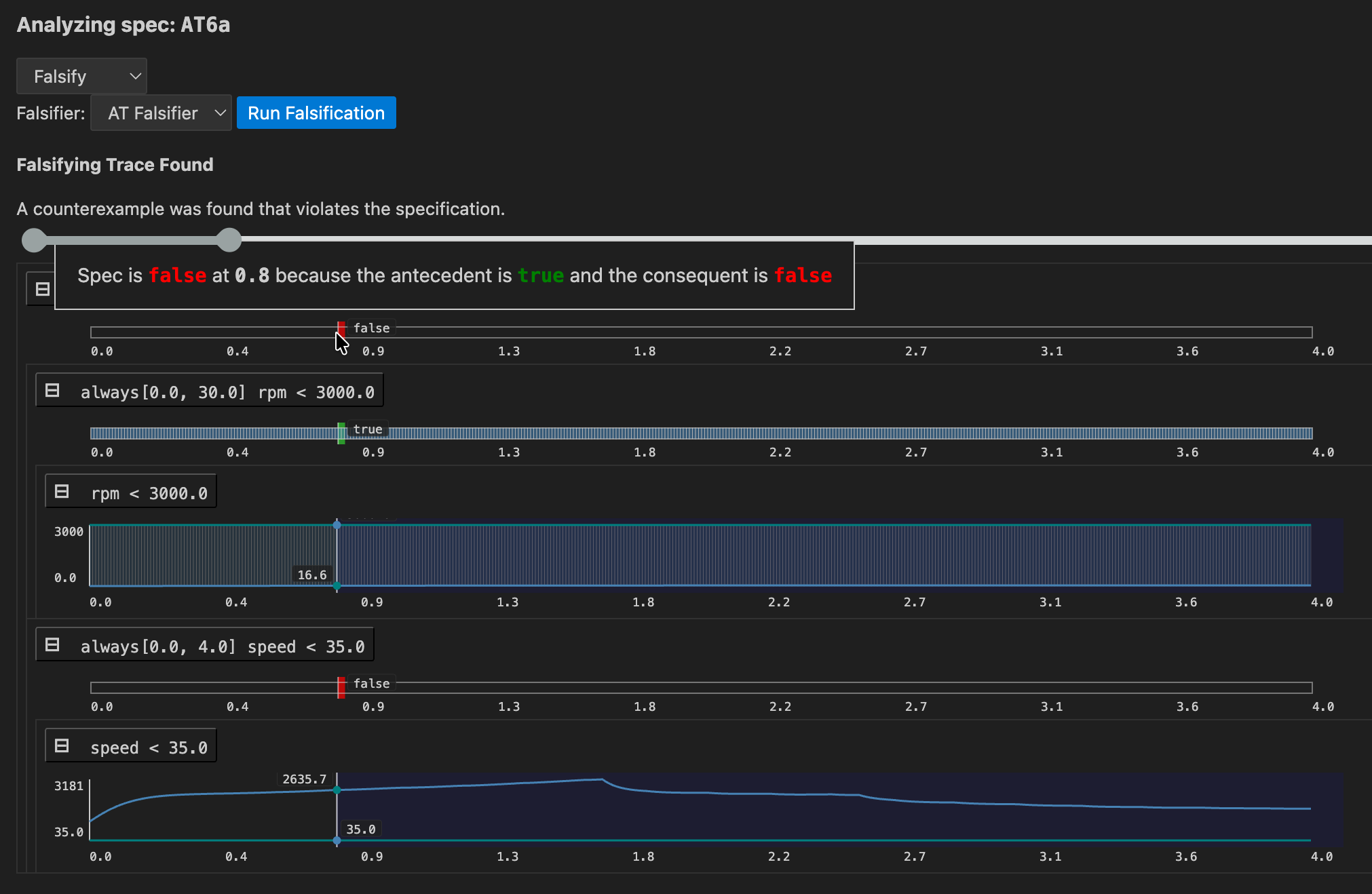
Once this is done, the falsifier will show up in the Falsify analysis menu. If a falsifying signal is found, the monitoring tree is show, to help understand how the model went wrong:
Export
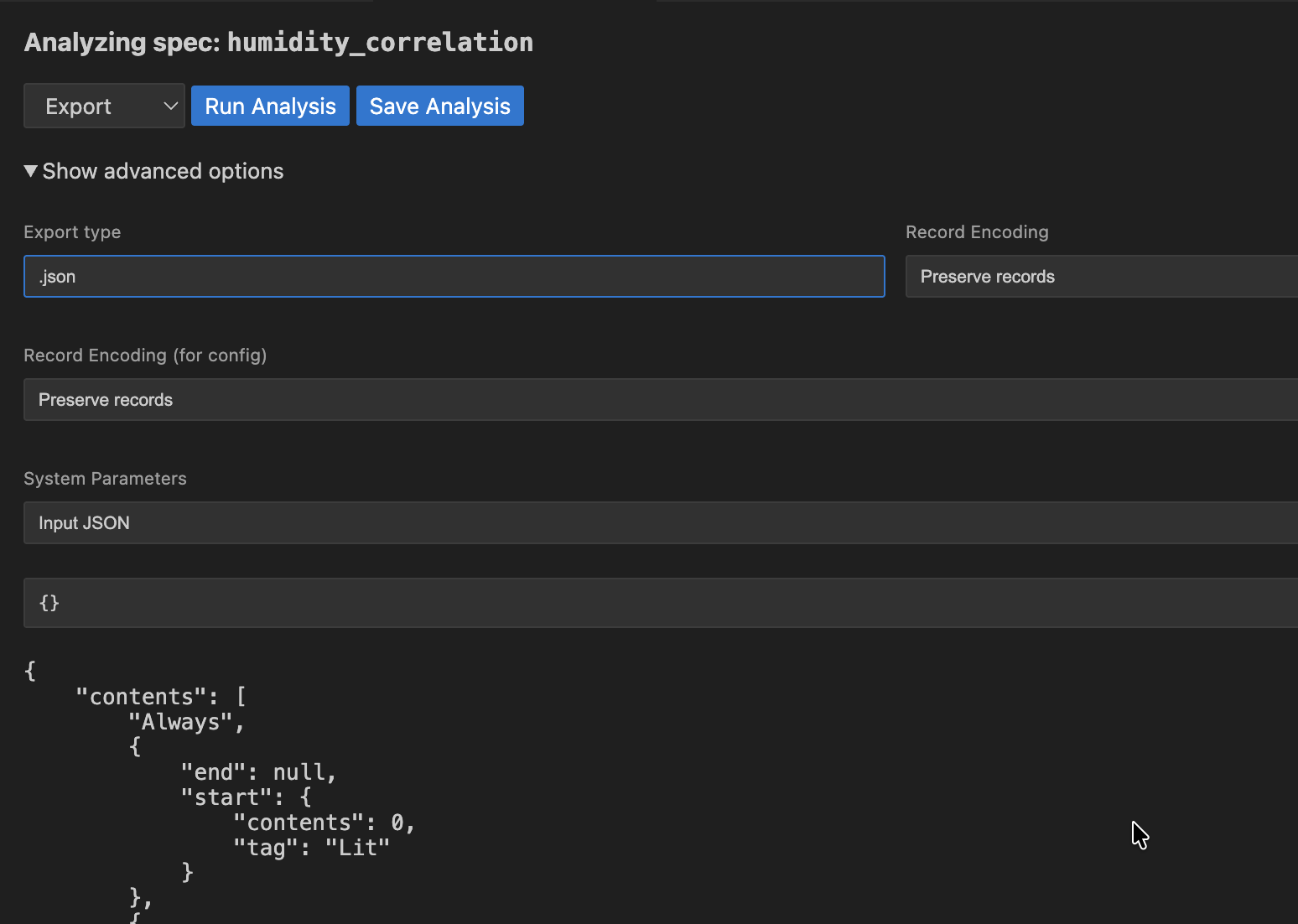
Export converts your specifications to other formats, to be used in other tools. For example, if you want to export your specification to JSON format, choose .json as the Export type.
Next Steps
This tour covered the basics of what SpecForge can do. The following chapters dive deeper into:
- The full Lilo language (Lilo Language)
- System definitions and composition (Systems)
- The Python SDK for programmatic access (Python SDK)