Troubleshooting Guide
Running the Doctor
To diagnose issues such as connectivity with the SMT Solver (used for static analysis) or access to LLMs, you can run the doctor CLI command. Simply run specforge doctor --help to learn more.
Bypassing Proxies
When creating a SpecForge client object using the Python SDK (see the Python SDK guide), make sure that you have specified the correct base_url for the server. If you are running the server locally, make sure that you have specified the correct port.
On some systems, there may be a proxy configured which intercepts requests from the Jupyter Notebook (or other Python environments) to the SpecForge server. To ensure that the requests from the Python SDK bypass the proxy, try setting the NO_PROXY environment variable to include the address of the SpecForge server (usually localhost).
import os

os.environ["NO_PROXY"] = "localhost,127.0.0.1,::1,[::1]"
MacOS Gatekeeper
The MacOS Gatekeeper may display an alert preventing you from executing the downloaded binary, because it was downloaded from a third-party source.
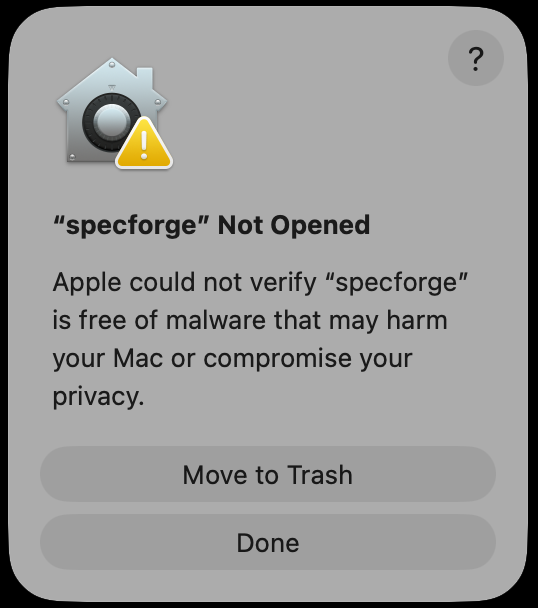
If this happens, you can manually whitelist the specforge executable. See this section of the Setting Up on MacOS guide for instructions on how to do this.
Version Mismatch
The SpecForge extension for VS Code, the SpecForge backend, and the SpecForge Python SDK should be used together at the same version. If the versions are mismatched, you may see a warning from the VS Code Extension. You can resolve this in either of the two ways:
- Download the latest version of the SpecForge from the release page.
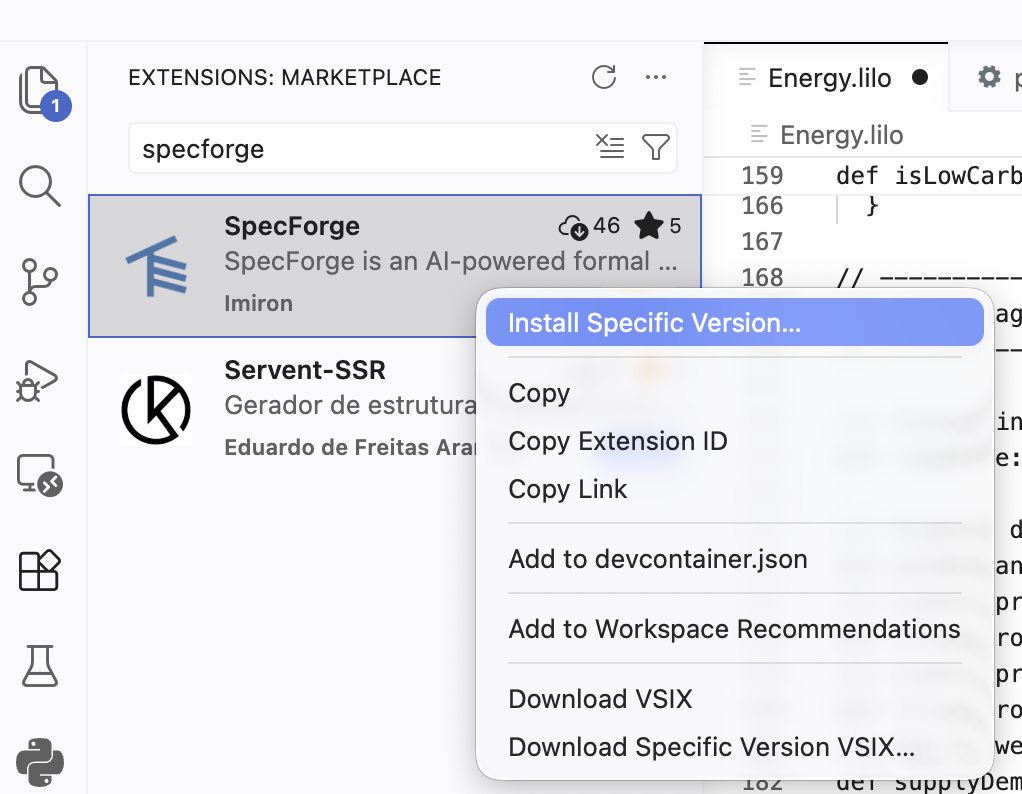
- If your workflow requires you to use a specific version, you can downgrade your VSCode extension. To do so, open the Extensions view in the editor, search for “SpecForge”, and click on “Install a specific version” in the dropdown menu. Then, select the preferred version from the list.