Falsification
Falsification is the discovery of inputs to a system which violates the given specifications. Generally, the falsification problem consists of the following.
- Context: System Model (i.e, a relation between input signals and output signals)
- Input: A Specification on the input and output signals of the system
- Output: An Input Signal that causes the system to violate the specification
Falsification tools can be categorized as follows.
- System-Dependent: A falsifier which is designed to work with a fixed system model.
- System-Independent: A falsifier which can be used with any system model, i.e, the falsifier allows the user to choose a model.
- Black-box: A system-independent falsifier where the model can only be understood by the falsifier through its inputs and outputs.
- Glass-box: A system-independent falsifier where the falsifier accepts a description of the model rather than a handle to execute it.
SpecForge currently only supports interfacing with System-Dependent falsifiers. This means that the user must supply a script which fixes both the model and provides the falsifier (which is specific to the model).
Below, we describe the details of how to set up such a falsifier to interface with SpecForge. We refer the user to the falsification example projects for complete examples, which we include in the SpecForge releases page.
- F16 Aircraft Model: This is a model of the F16 aircraft modelled using 16 continuous variables with piecewise nonlinear differential equations, whose core component is a ground collision avoidance system.
- Automatic Transmission (requires MATLAB): This is a model that selects a gear in a vehicle, which has two inputs (a throttle and a brake). Other components of the model include the speed and rotations per minute. This model is inspired by the one commonly included as a part of MATLAB documentation examples, and is implemented using Simulink.
Preparing the Falsification Script
The falsification script must be able to accept the following arguments.
- The path to the SpecForge project directory (i.e, where the
lilo.tomlfile is located) via--project-dir - The name of the system to falsify via
--system - The name of the specification to falsify via
--spec - Values for
params of the system in the form of a JSON via--params - Additional options for the script via
--options
Thus, the command would be invoked as follows.
sh scripts/automatic_transmission.sh --system 'automatic_transmission' --spec 'AT6a' --options '{}' --params '{}' --project-dir './spec/'
The output of the falsification script should either be
{ "tag": "Err", "contents": err}{ "tag": "Ok", "contents": { "signal": signal}}
Where err is a string (such as “Couldn’t Falsify”), and signal is the result of the falsification in JSON format. If using a pandas dataframe, this could be obtained using the converters.python_to_api_timeseries function in the SpecForge SDK.
Registering the Falsifier
In your lilo.toml file, register the falsifier as follows.
[[system_falsifier]]
name = "Automatic Transmission Falsifier"
system = "automatic_transmission"
script = "scripts/automatic_transmission.sh"
This tells SpecForge that the falsifer associated with the system automatic_transmission can be invoked by running the script scripts/automatic_transmission.sh.
Invoking the Falsification Workflow
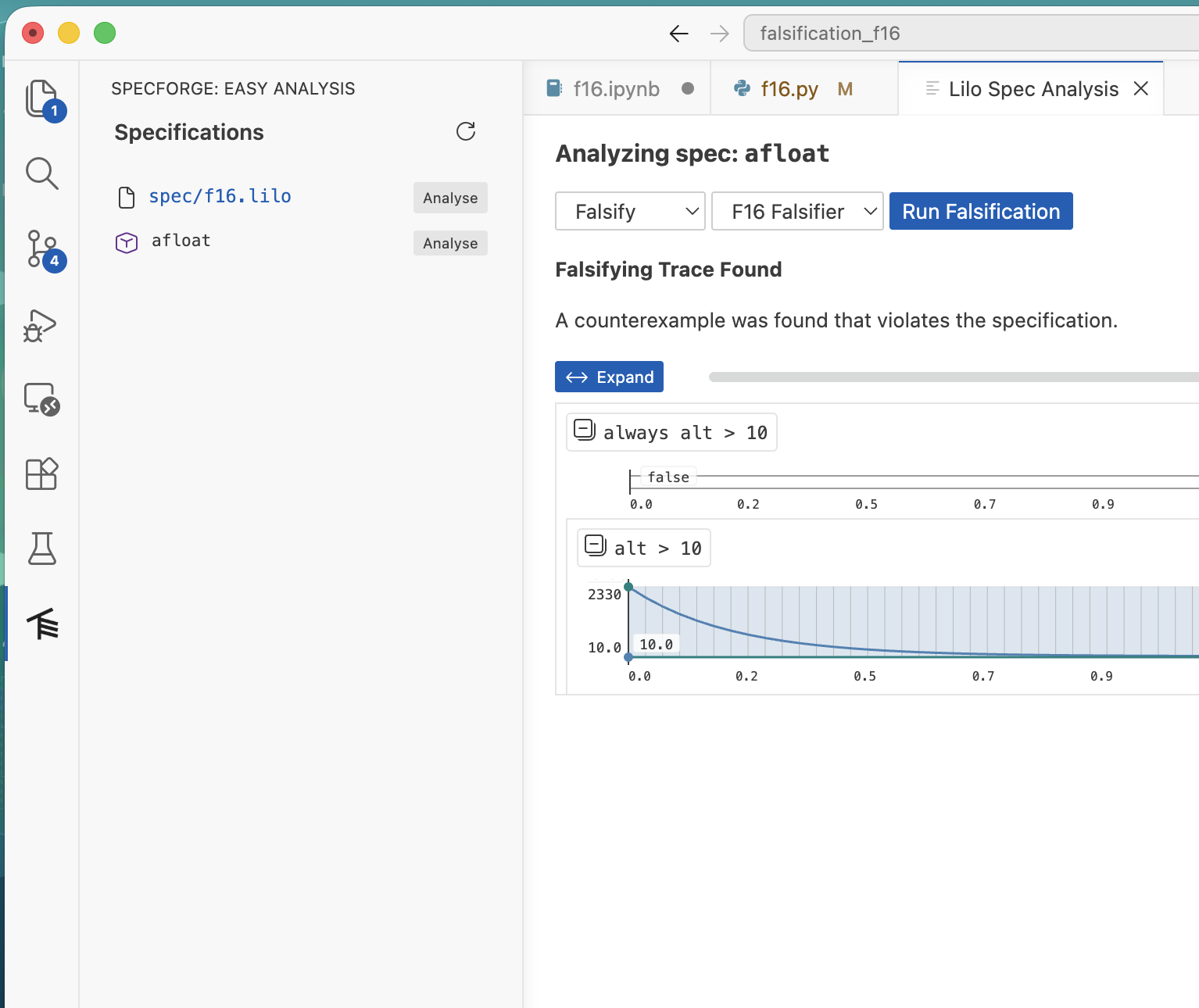
Once the Falsification script is ready and registered, it can be invoked using the easy analysis option of the VSCode extension. See the screenshot below.