Setting up SpecForge on macOS
This guide will walk you through setting up SpecForge on macOS using the standalone executable.
1. Download the Executable
Download specforge-x.y.z-macOS-ARM64.tar.bz2 from the SpecForge releases page and extract it to a directory of your choice.
2. Install Dependencies
The SpecForge executable requires Z3 to be installed. rsvg-converter is optional but recommended for SVG-to-PNG conversion used by the animation feature.
Install using Homebrew:
brew install z3 librsvg
If you don’t have Homebrew, install it from brew.sh.
Note:
librsvgprovides thersvg-convertcommand. Without it, theanimate()feature in the Python SDK will not be able to render PNG frames from SVG visualizations. All other SpecForge features work without it.
3. Configure Your License
The SpecForge server requires a valid license file to start. If you don’t have a license, please contact the SpecForge team or request a trial license.
Place your license.json file in one of the following locations:
-
Standard Configuration Directory (recommended):
~/.config/specforge/license.json
-
Environment Variable (for custom locations):
export SPECFORGE_LICENSE_FILE=/path/to/license.json -
Current Directory:
./license.json
Create the directory if it doesn’t exist:
mkdir -p ~/.config/specforge
cp /path/to/your/license.json ~/.config/specforge/
4. Configure LLM Provider (Optional)
To use LLM-based features such as natural-language spec generation and error explanation, configure an LLM provider by setting environment variables before starting the server.
For OpenAI (recommended):
export SPECFORGE_LLM_PROVIDER=openai
export SPECFORGE_LLM_MODEL=gpt-5-nano-2025-08-07
export OPENAI_API_KEY=your-api-key-here
Get an API key from platform.openai.com/api-keys.
For other providers (Gemini, Anthropic, Ollama), see the LLM Provider Configuration guide.
5. Start the Server
Navigate to the directory where you extracted the SpecForge executable and run:
./specforge serve
The server will start on http://localhost:8080. You can verify it’s running by navigating to http://localhost:8080/health, which should show version information.
Note: The server will exit immediately if the license is missing or invalid. If you encounter startup issues, verify your license configuration.
Allowing Execution of the Downloaded SpecForge Binary
The MacOS Gatekeeper may display an alert preventing you from executing the downloaded binary, because it was downloaded from a third-party source.
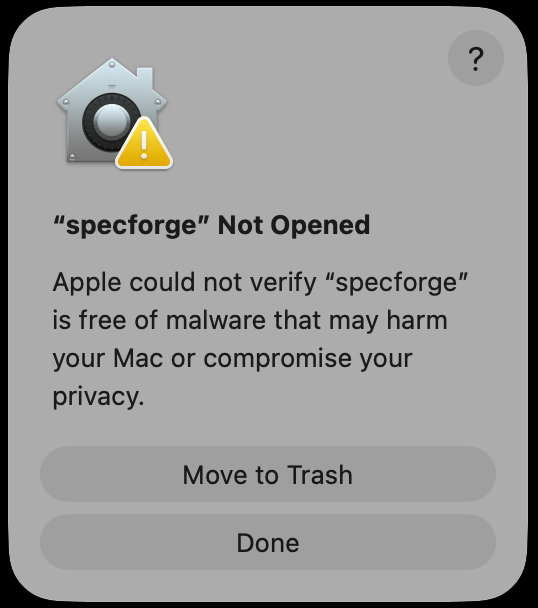
To whitelist the specforge executable, run the following command.
xattr -d com.apple.quarantine path/to/specforge
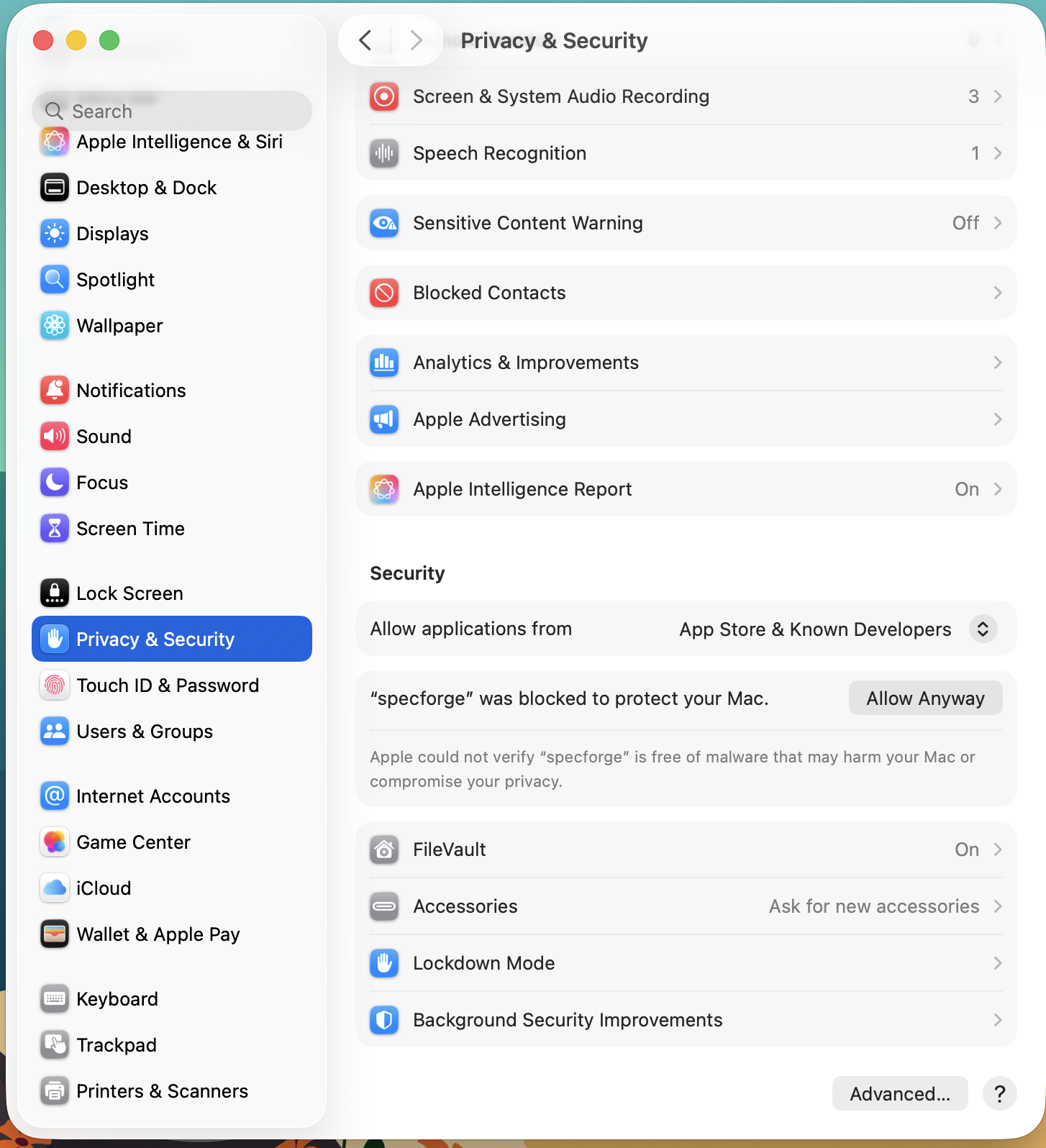
Alternatively, you can do so from the System Settings GUI by following these steps.
- Open System Settings, and go to ‘Privacy & Security’
- In the security section, you should see ‘“specforge” was blocked to protect your Mac.’
- Click ‘Open Anyway’.
6. Install the VSCode Extension
Install the SpecForge VSCode extension from the Visual Studio Marketplace or see the VSCode Extension setup guide.
7. Install the Python SDK (Optional)
The Python SDK enables interaction with the SpecForge server programmatically from Python. This can be used to embed SpecForge analyses in Python notebooks and directly feed and retrieve data using Pandas Dataframes. See the Python SDK setup guide for instructions on how to set it up.
Further Reading
- VSCode Extension - Learn about the VSCode extension features
- Python SDK - Set up the Python SDK for programmatic access
- A Whirlwind Tour - Take a tour of SpecForge capabilities
- Project Configuration - Learn about
lilo.tomlconfiguration